> ## Documentation Index
> Fetch the complete documentation index at: https://docs.onetoken.sh/llms.txt
> Use this file to discover all available pages before exploring further.
# 申请 Telegram Bot 指南
> 本文整理 Telegram Bot 的基础申请流程,帮助首次接入 Telegram 官方机器人平台的开发者快速了解整体流程。
本文内容根据 2026 年 3 月 1 日可访问的 Telegram 官方文档整理。平台页面和指令可能调整,实际操作时应以 Telegram 客户端和官方文档为准。
## 官方入口
* BotFather 网页版入口:[https://t.me/BotFather](https://t.me/BotFather)
* BotFather 客户端入口:[@BotFather](https://t.me/BotFather)
## 申请流程
### 1. 打开 BotFather
在 Telegram 中搜索 `@BotFather`,确认账号为官方账号后,点击 `Start` 开始会话。
请确认用户名为 `@BotFather`。不要使用名称相似的第三方机器人。
### 2. 创建机器人
向 BotFather 发送 `/newbot` 指令,开始创建新的 Telegram Bot。
### 3. 设置机器人名称
根据提示输入机器人名称。该名称会显示在机器人资料页和会话界面中。
### 4. 设置机器人用户名
继续根据提示设置机器人用户名。用户名必须满足以下要求:
* 长度为 5 到 32 个字符
* 只能使用英文大小写字母、数字和下划线
* 必须以 `bot` 结尾,例如 `example_bot` 或 `ExampleBot`
### 5. 获取 Bot Token
创建成功后,BotFather 会返回该机器人的 Bot Token。后续调用 Telegram Bot API 时,需要使用该 Token 完成身份校验。
Bot Token 属于敏感凭证,请像密码一样妥善保管,不要泄露给无关人员,也不要提交到代码仓库。
### 6. 示例
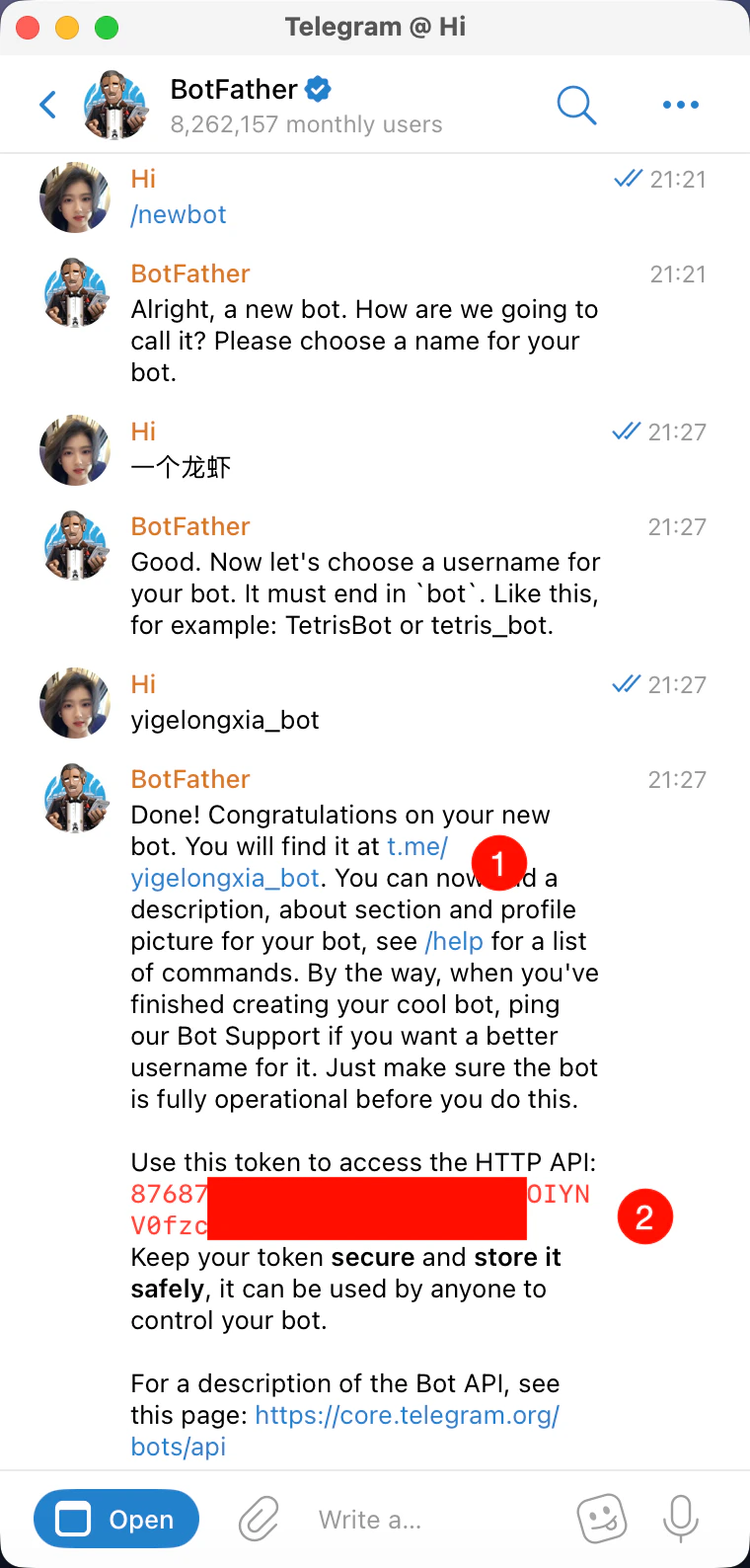
图中标记 1 为你的机器人用户名,标记 2 为 Bot Token。
 ### 7. 获取自己的 UserID
获取自己的 UserID 后,可在后续配置白名单时使用,以便“小龙虾”对白名单用户直接放行对话
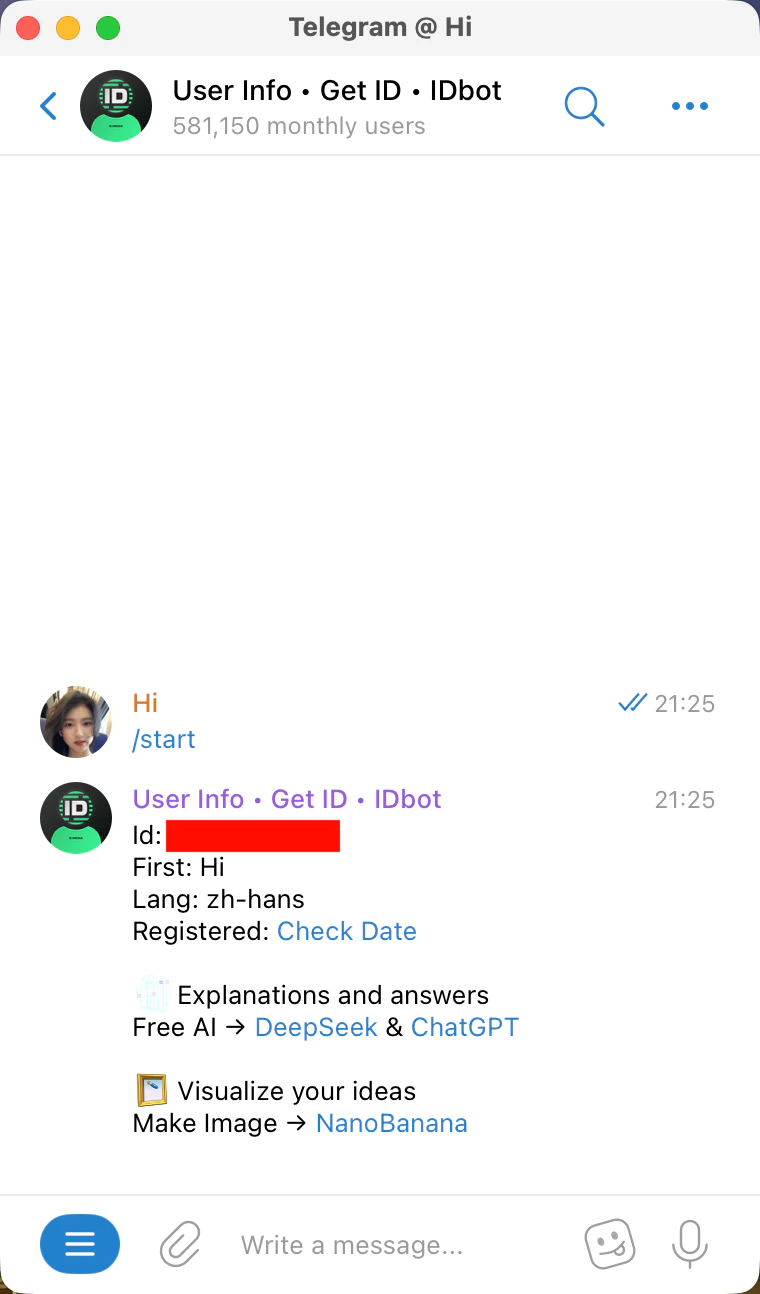
向 `@userinfobot` 发送 `/start` 指令,即可获取自己的 UserID。下方图片中已打码的部分为你的 UserID。
### 7. 获取自己的 UserID
获取自己的 UserID 后,可在后续配置白名单时使用,以便“小龙虾”对白名单用户直接放行对话
向 `@userinfobot` 发送 `/start` 指令,即可获取自己的 UserID。下方图片中已打码的部分为你的 UserID。